Google Search Console can now track how your Instagram, TikTok, YouTube, and X content performs across Google.
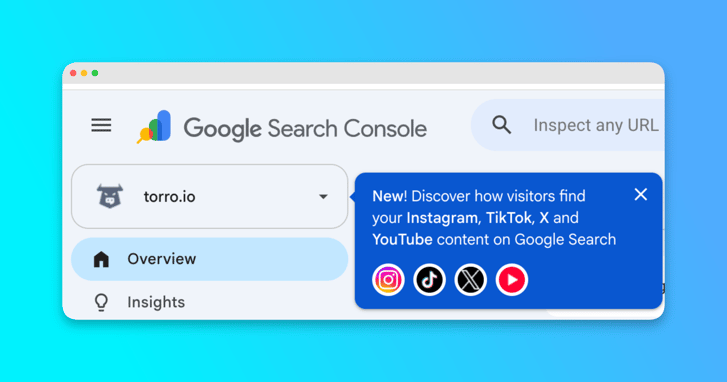
This is a big deal for business owners, marketers, and content creators.
Until now, most businesses used Google Search Console to measure the organic search performance of their website. With the introduction of platform properties, you can now add supported social media accounts and see how their posts and videos perform when people find them through Google Search.
The setup takes less than a minute. Once your accounts are connected, you can view clicks, impressions, search queries, top-performing posts, countries, devices, search appearances, and performance trends for each social platform.
This guide will show you exactly how to add social media to Google Search Console and, more importantly, how to use the information to create better content.
What Are Social Media Platform Properties in Google Search Console?
Google calls these new account connections platform properties.
A traditional Search Console property represents a website or domain. A platform property represents a supported social media or video account.
Google currently supports platform properties for:
- TikTok
- YouTube
- X
Each social profile is added as its own property. Once connected and verified, it appears in your Search Console property selector alongside your websites.
You can then open that property to review how content from the account performs across eligible Google surfaces.
This gives businesses a clearer view of something that has historically been difficult to measure: how much organic Google visibility their social media content is generating.
How to Add Social Media to Google Search Console
Follow these five steps to connect your social media accounts and begin reviewing their organic search performance.
Step 1: Go to Google Search Console
Open Google Search Console and sign in with the Google account you use to manage your website properties.
If you already use Search Console for SEO reporting, you should see your existing website properties in the property selector.
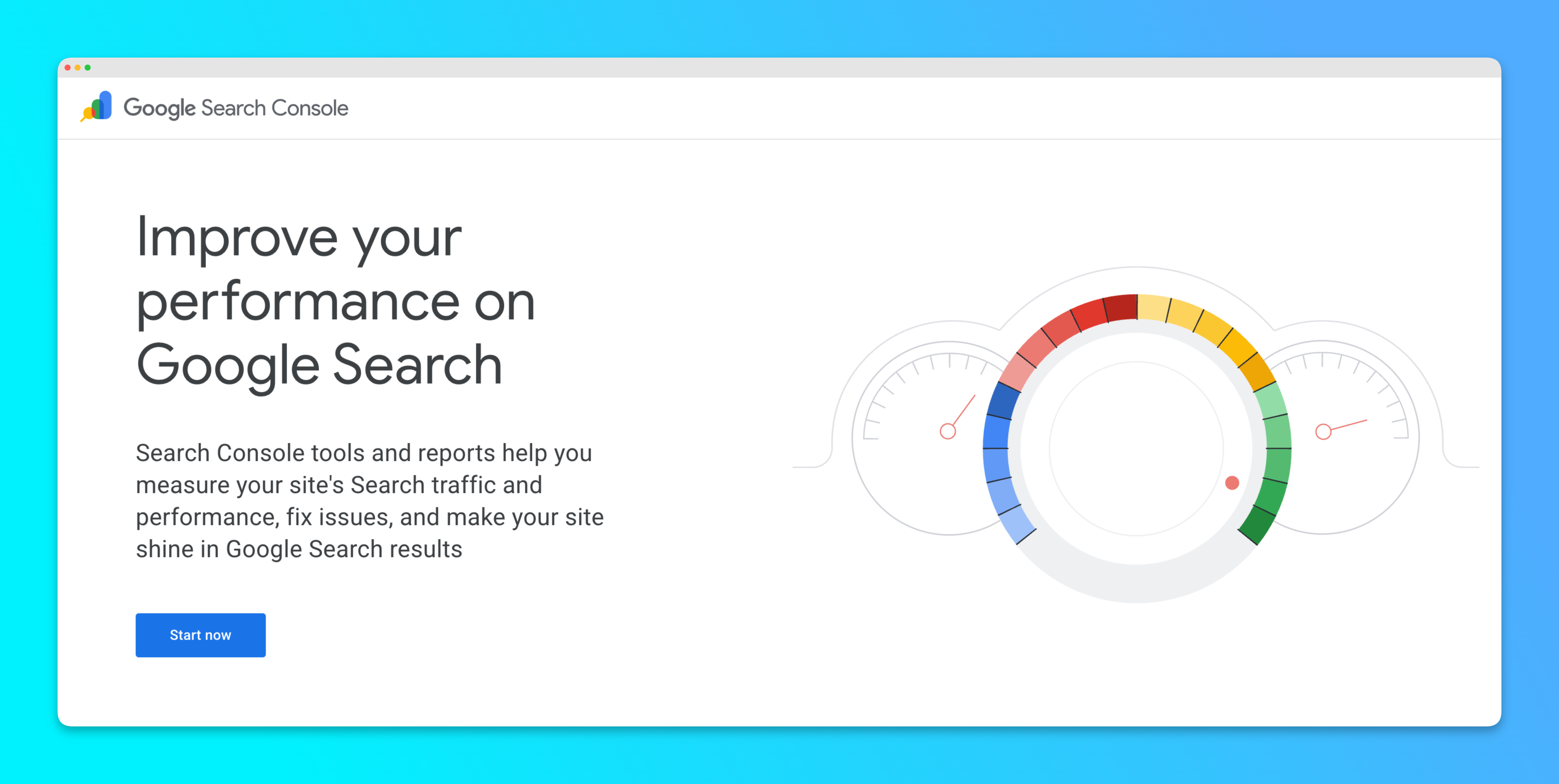
You do not need to remove or replace your website property. Your social accounts will be added as separate properties within the same Search Console account.
Step 2: Click “Add Property”
Open the property selector in the upper-left corner of Google Search Console.
Scroll through the property list and select Add property.
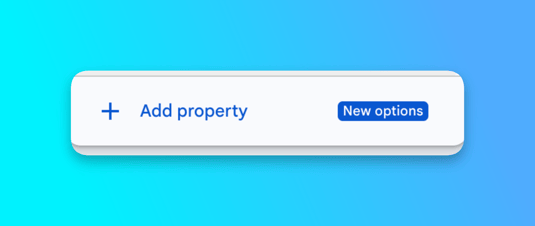
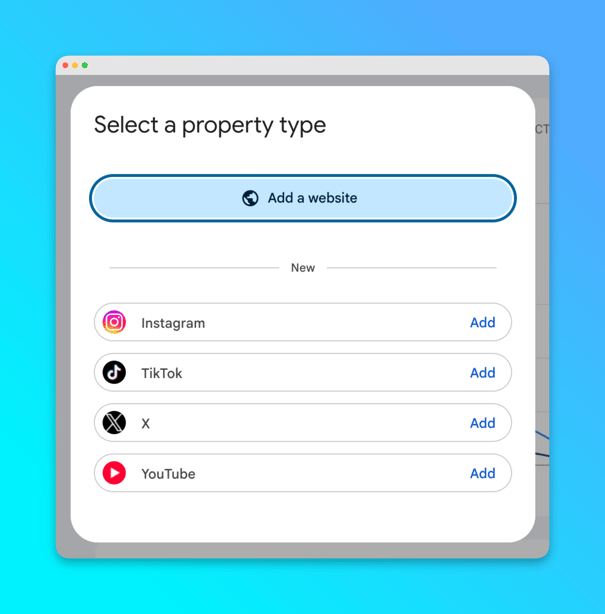
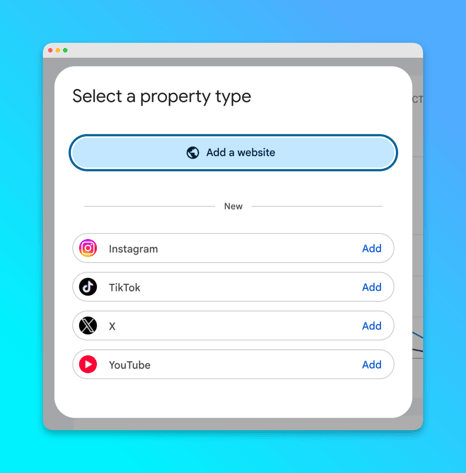
Google will open a new window asking which type of property you want to add.
In addition to the traditional website option, you should now see choices for supported social and video platforms.
Step 3: Connect Your Social Media Channels
Select the platform you want to connect and click Add.
Follow the authorization instructions shown on the screen. You may be asked to sign in to the selected platform, approve access, or confirm that you own or manage the account.
Repeat this process for every supported platform your business actively uses:
- Add your Instagram account.
- Add your TikTok account.
- Add your YouTube channel.
- Add your X account.
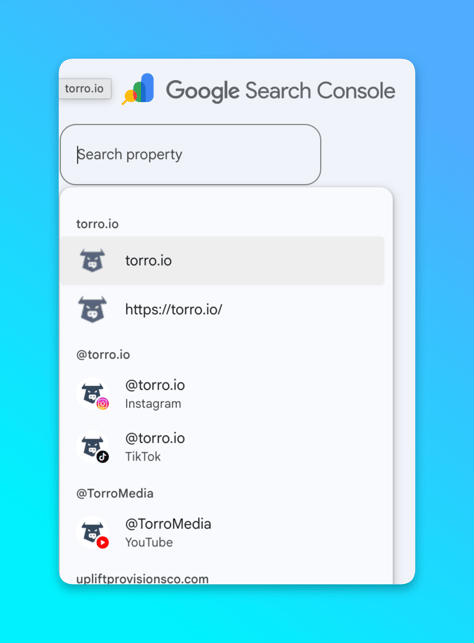
Each platform is treated as a separate Search Console property. This means you will select and review each account individually rather than seeing all social data combined into one report.
Once an account has been successfully connected, it should appear in the property selector with the platform icon and account name.
Step 4: Review Your Social Media Insights
Select one of your connected social media properties from the property dropdown.
You should see dedicated Insights and Performance reports for that account.
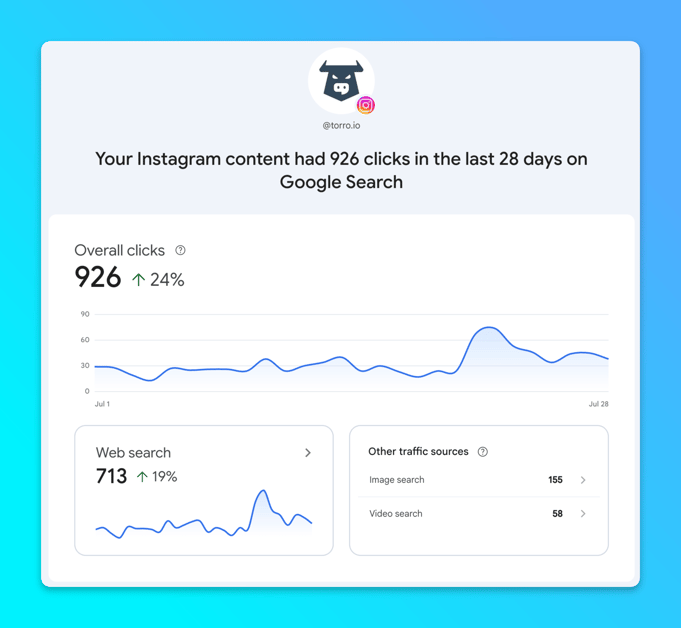
Depending on the platform and available data, Google Search Console may show:
- Total clicks
- Total impressions
- Average click-through rate
- Average search position
- Top search queries
- Top-performing posts or videos
- Countries
- Devices
- Search appearances
- Daily performance trends
The Performance report works similarly to the website performance report many marketers already use. You can adjust the date range, add filters, compare performance, and review individual pieces of content.
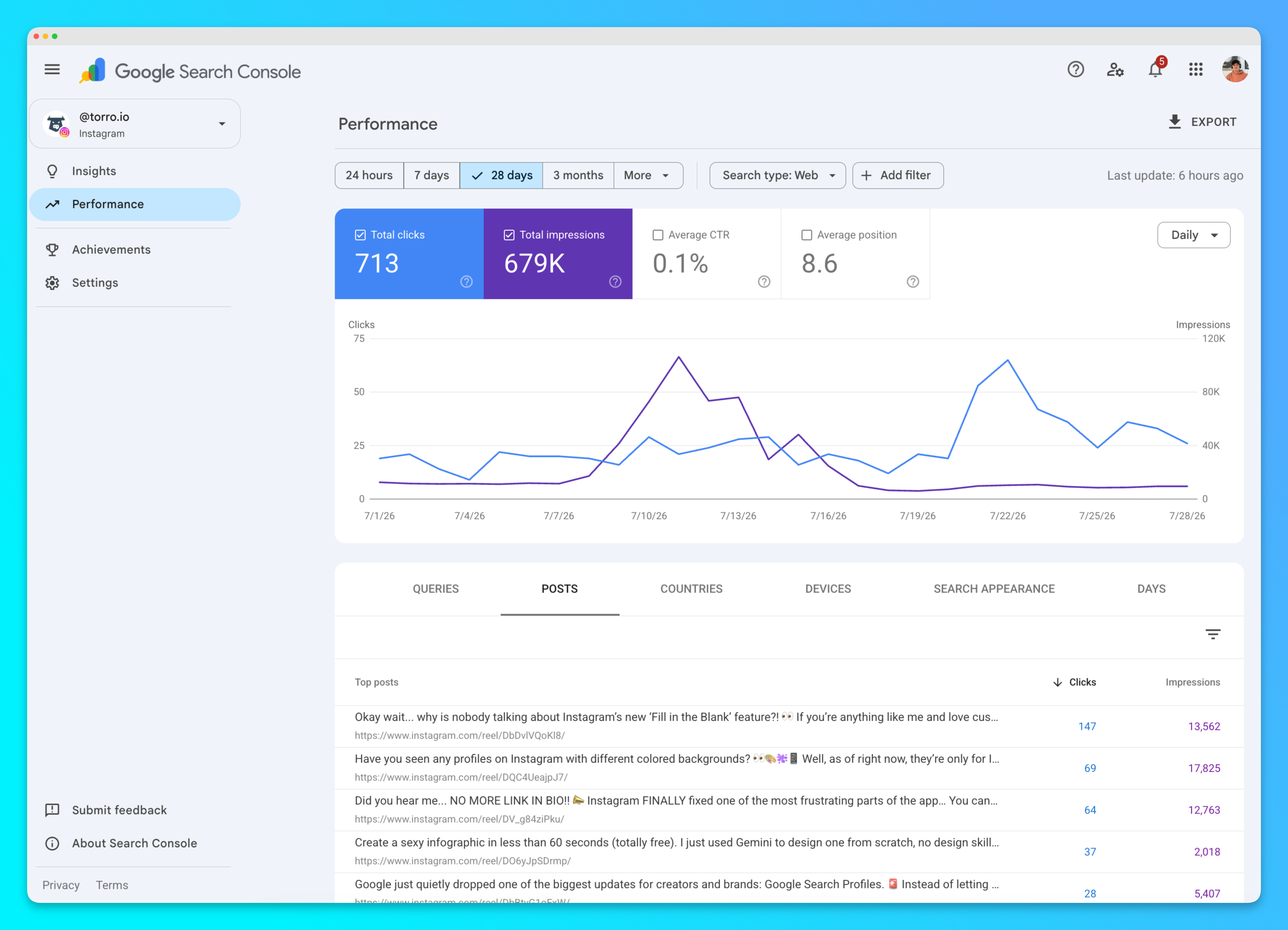
One of the most useful areas is the Posts or content-level report.
This report shows which specific posts or videos earned impressions and clicks from Google. Instead of relying only on likes, comments, shares, or views inside the social platform, you can see which content is also being discovered through search.
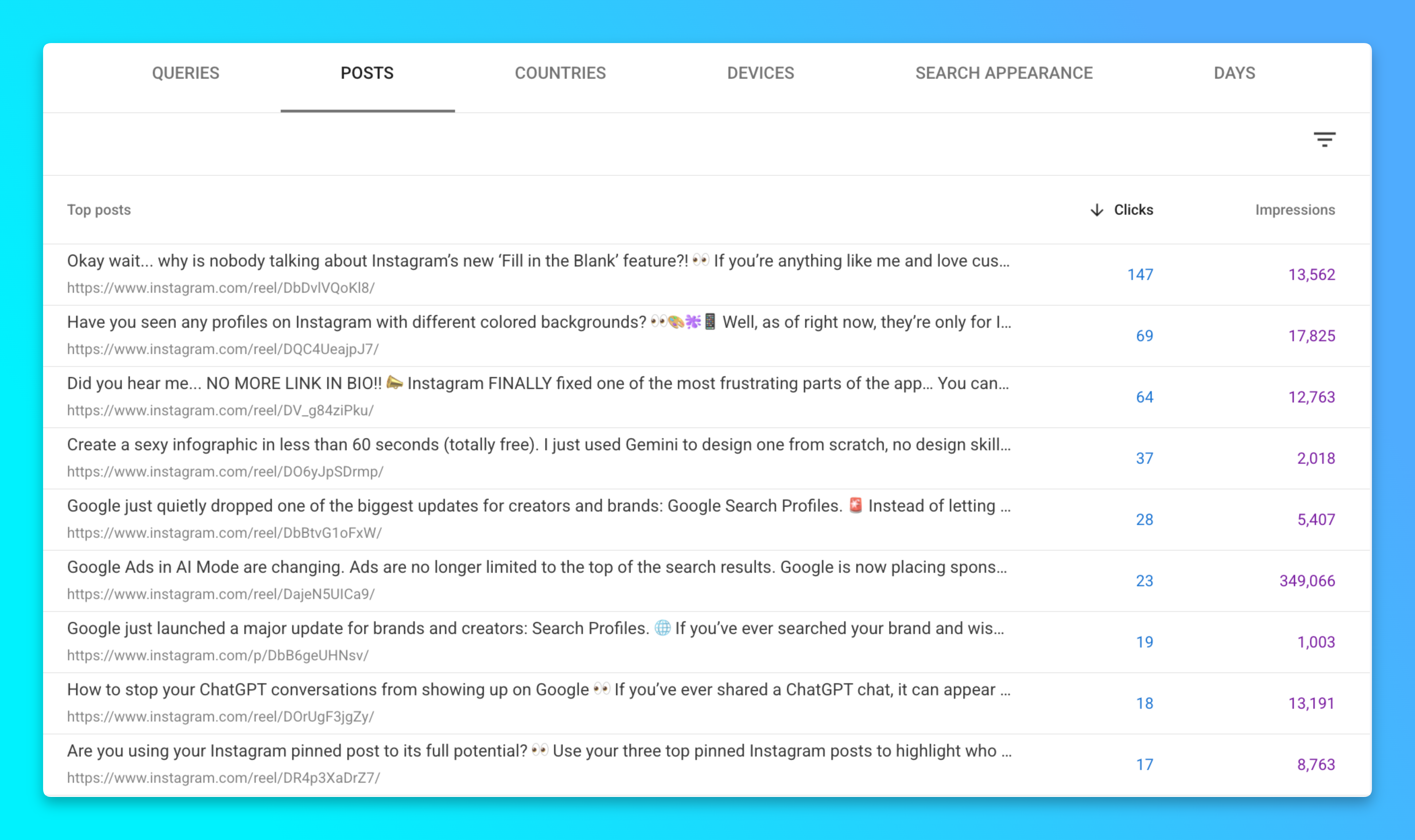
Step 5: Create More Content Around What Is Working
Connecting your accounts is only the first step.
The real value comes from using the data to make better content decisions.
Look for posts and videos that generate:
- A high number of Google impressions
- Consistent organic clicks
- Improving performance over time
- Visibility for valuable search queries
- Renewed interest months after publication
When you find a topic that performs well, do not treat it as a one-time success. Build around it.
A successful Instagram Reel could become:
- A follow-up Reel
- A longer YouTube video
- A detailed blog post
- A frequently asked question page
- A LinkedIn post
- An email newsletter
- A social media carousel
- A larger educational guide
This is much more useful than starting every content planning meeting with a blank page.
Google is showing you which topics are already earning visibility. Your job is to study the pattern, understand why the content worked, and create more helpful content around the same audience need.
What Can You Measure After Connecting Your Social Accounts?
The specific reports may vary by platform, but the following metrics are among the most useful for business owners and marketers.
Clicks
Clicks show how many times someone clicked through to your social content from an eligible Google surface.
This tells you which posts are not only appearing in search, but are compelling enough to earn traffic.
Impressions
Impressions show how often your content appeared to users on Google.
A post can earn a large number of impressions without receiving many clicks. That may indicate an opportunity to improve the title, caption, thumbnail, topic framing, or opening message.
Click-Through Rate
Click-through rate compares the number of clicks your content received with the number of times it appeared.
Use this metric carefully. A lower click-through rate is not always bad, especially when a piece of content is appearing for a large or broad set of searches. Compare similar types of content rather than judging every post by the same standard.
Average Position
Average position estimates where your content appeared in Google results across the searches included in the report.
Because ranking positions can change by query, device, location, and search context, use this as a directional metric rather than a perfect ranking score.
Search Queries
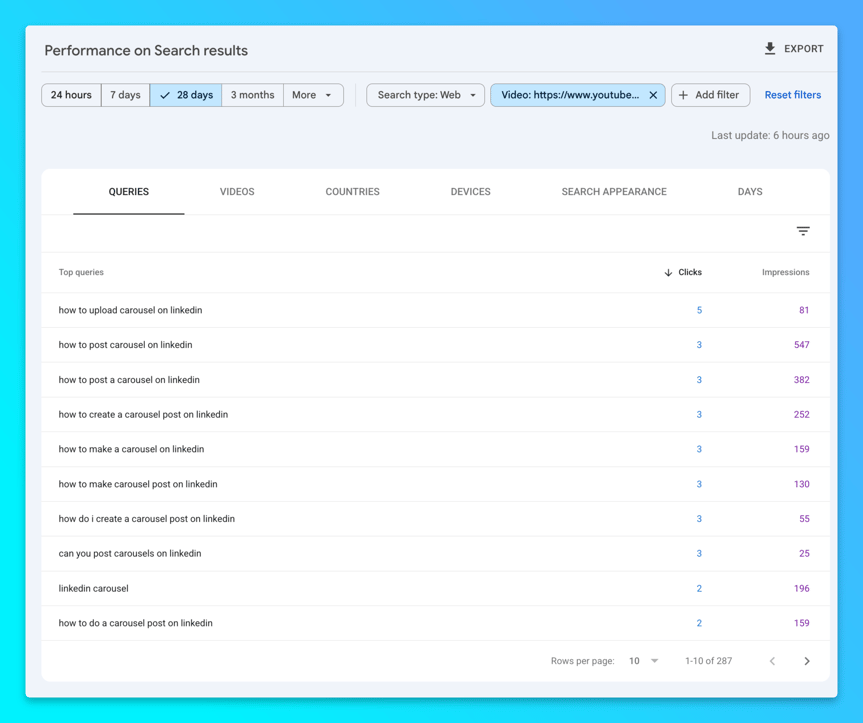
The Queries report helps you understand what people searched before discovering your social content.
This is one of the strongest sources of content inspiration in the entire report.
Search query themes can help you improve:
- Future video topics
- Social media captions
- YouTube titles
- Blog post ideas
- Frequently asked questions
- Content categories
- Calls to action
Top Posts and Videos
The content-level report lets you identify the exact posts and videos earning organic visibility.
This helps answer a critical marketing question:
Which content does Google continue to surface after the initial social media engagement has slowed down?
A post may stop receiving significant reach inside Instagram or TikTok but continue attracting impressions and clicks through Google. Search Console finally gives you a better way to identify that long-term value.
How to Compare Instagram Posts, Reels, YouTube Videos, and Shorts
Google Search Console also allows you to filter and compare different types of social and video content.
For example, you may be able to compare:
- Instagram posts with URLs containing
/p/ - Instagram Reels with URLs containing
/reels/ - Standard YouTube videos with URLs containing
/watch - YouTube Shorts with URLs containing
/shorts/
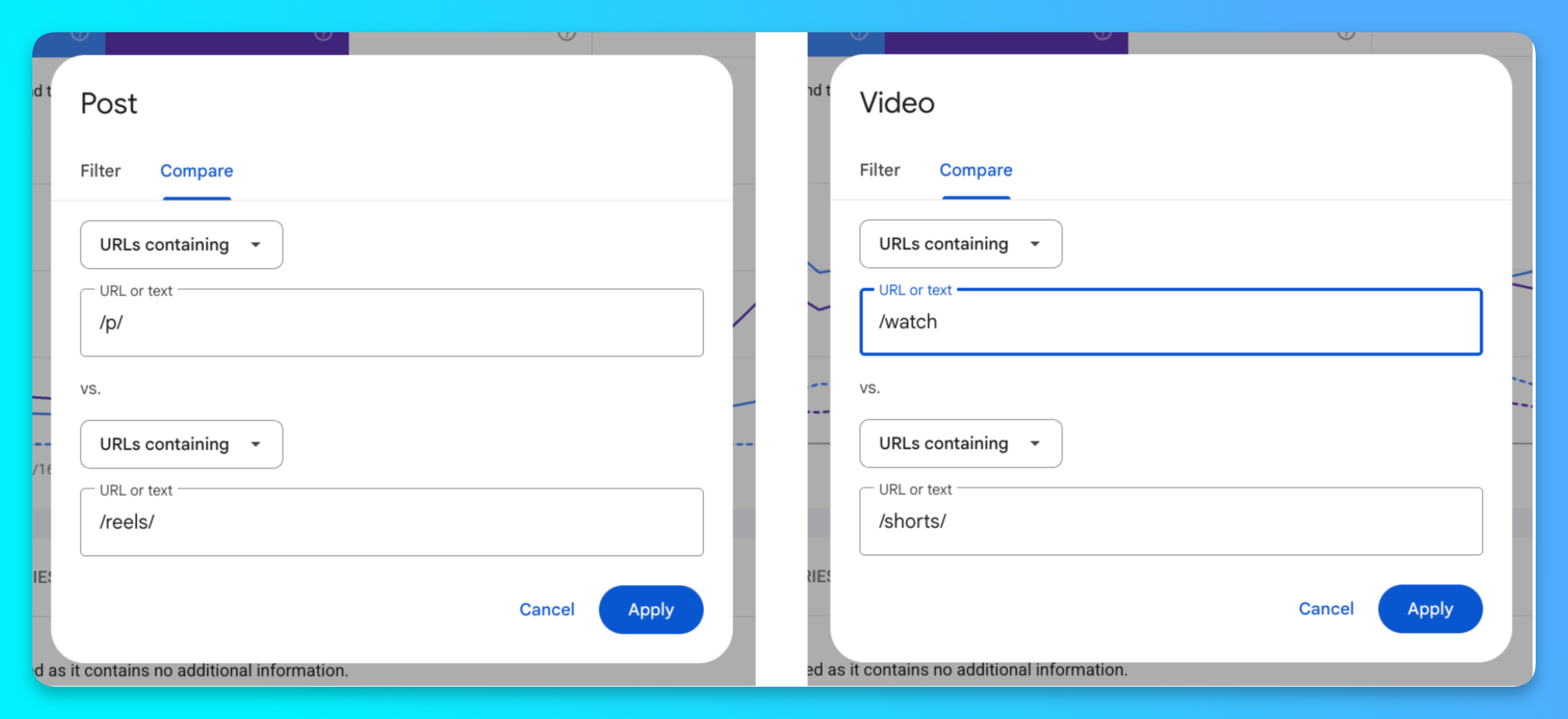
This makes it possible to move beyond general assumptions about short-form and long-form content.
You can compare actual search performance and ask questions such as:
- Do our Instagram Reels earn more Google clicks than standard posts?
- Do YouTube Shorts generate visibility but fewer clicks?
- Do long-form videos continue earning traffic for a longer period?
- Which format performs best for educational searches?
- Which platform creates the strongest long-term search value?
The answer will be different for every brand. That is exactly why this data matters.
Why This Google Search Console Update Matters for SEO
SEO is no longer limited to optimizing pages on your website.
People discover businesses through a combination of traditional search results, videos, images, social media posts, maps, reviews, AI-generated answers, and other digital sources.
Google's new platform properties give businesses a better view of how social and video content participates in that discovery process.
That does not mean that connecting an Instagram account to Search Console will automatically improve your rankings. Search Console is primarily a measurement tool. Adding a property gives you access to reporting; it is not a shortcut or direct ranking boost.
The SEO value comes from what you learn and what you do next.
You can use the data to:
- Identify topics with proven search demand
- See which social posts Google is already surfacing
- Find opportunities to improve titles and captions
- Turn successful social content into website content
- Build stronger topic coverage across multiple platforms
- Understand how people discover your brand beyond your website
This is a much more complete way to think about organic visibility.
What This Means for AI Visibility
Businesses should be careful not to overstate what any single tool or metric can prove about AI visibility.
Google Search Console does not tell you every time your brand is mentioned or cited inside every AI platform. It also does not guarantee that a social post will appear in an AI-generated response.
What it does provide is useful evidence about how Google understands, surfaces, and sends traffic to your content across more than just your website.
That matters because modern search visibility increasingly depends on the strength of your entire digital presence:
- Your website
- Your social profiles
- Your videos
- Your reviews
- Your brand mentions
- Your demonstrated expertise
- Your consistency across platforms
When the same business repeatedly publishes useful and consistent information across its website, YouTube channel, Instagram account, TikTok profile, and other trusted platforms, search engines have more context to understand what that business does.
Platform property reporting helps you see which parts of that broader content ecosystem are actually earning visibility.
Five Ways to Use Social Search Console Data
1. Find Your Next Content Topic
Review your top queries and identify repeated themes.
If several different searches lead to the same post, that topic may deserve a larger piece of content.
Create a follow-up video, answer a related question, or write a detailed article that serves the same search intent.
2. Repurpose Your Best Social Posts
Do not judge content only by likes or views.
A post with modest social engagement may be one of your strongest organic search performers.
Use Search Console to find those hidden winners and repurpose them into additional formats.
3. Update Older Content That Is Gaining Traffic
Older posts can regain visibility when a topic becomes relevant again.
When you notice a traffic increase, consider:
- Pinning the post to your profile
- Publishing a follow-up
- Updating the caption or title
- Linking to a related service or resource
- Creating a longer explanation
4. Compare Short-Form and Long-Form Content
Use filters to compare YouTube videos with Shorts or Instagram posts with Reels.
Look beyond total reach. Compare clicks, impressions, search queries, and the length of time each format continues generating traffic.
5. Build a Search-Led Content Calendar
Use your highest-performing topics as the foundation of your content calendar.
Instead of selecting subjects based only on internal opinions or social media trends, combine platform data with real Google search behavior.
A simple monthly process could look like this:
- Review your top social properties in Search Console.
- Export the leading queries and posts.
- Group related searches into topic themes.
- Choose the themes most relevant to your business.
- Create new posts, videos, articles, and emails around those themes.
- Review the results and repeat the process next month.
Common Questions About Adding Social Media to Google Search Console
Which social media platforms can be connected to Google Search Console?
Google currently supports platform properties for Instagram, TikTok, X, and YouTube.
Does adding social media to Search Console improve SEO rankings?
Simply connecting an account does not automatically improve rankings. The connection provides reporting data. The value comes from using that data to understand search demand, improve content, and create more useful resources around topics that are already performing.
Can I connect more than one social media account?
Yes. Each supported social media account can be added as its own property, provided you can complete the required ownership or authorization process.
Can I see Instagram performance in Google Search Console?
Yes. After connecting an eligible Instagram account, you can review how its content performs across eligible Google surfaces. Available reporting may include clicks, impressions, queries, posts, countries, devices, and search appearance data.
Can I track TikTok videos in Search Console?
Yes. TikTok is one of the supported platform property types. Connect the account and select it from the Search Console property menu to review available performance data.
Can I compare YouTube Shorts with regular YouTube videos?
Yes. You can use page or URL filters to compare content with URLs containing /shorts/ against standard YouTube video URLs containing /watch.
Can I compare Instagram posts with Reels?
Yes. Use filters or comparison mode to separate standard Instagram post URLs from Reel URLs and evaluate their performance side by side.
Does Search Console combine all social platforms into one dashboard?
Each account is added and reviewed as its own property. To compare multiple platforms in one place, you may need to export the data and combine it in a spreadsheet or reporting dashboard.
How long does it take for social media data to appear?
Do not be concerned if a newly connected account does not immediately show complete historical reporting. Availability and processing time can vary. Check the property again after Google has had time to process the connection and populate eligible data.
Connect Your Social Media Accounts Today
This setup takes less than a minute, but the data can shape months of future content.
Go to Google Search Console, open the property selector, click Add property, and connect every supported social media account your business actively uses.
Then review the posts, videos, and topics already generating impressions and clicks from Google.
Do not just report on the numbers.
Use them.
Create more content around the questions people are asking. Expand the topics already earning visibility. Turn winning posts into videos, articles, emails, guides, and future campaigns.
Your website and social media channels are not separate marketing worlds anymore. They are all part of how people search for, discover, evaluate, and remember your business.
Need Help Improving Your Organic Visibility?
Torro Media helps businesses connect SEO, content marketing, social media, video, and paid advertising into one clear digital strategy.
We do not create content simply to stay busy. We focus on the topics, platforms, and opportunities that can help the right people discover your business.
Contact Torro Media to discuss your SEO and content marketing strategy.